Use this guide when a customer did not receive or has lost their original payment link. You can resend an existing request directly from the Payment Requests list without creating a new one.
Resending delivers the same payment link to the same contact on file. If the customer’s phone number or email has changed, create a new payment request from the invoice instead.
Steps
- 1
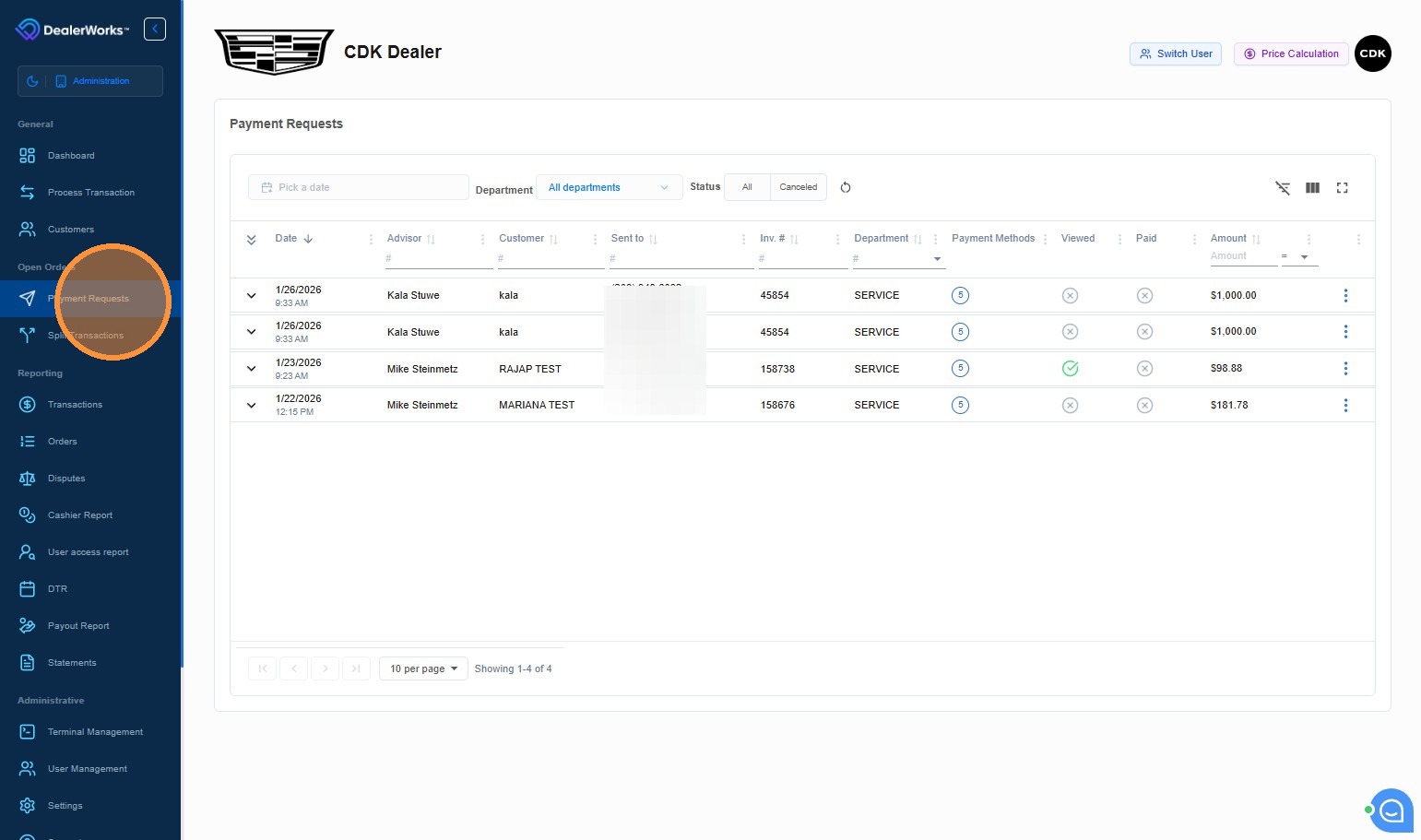
From the left navigation menu, click Payment Requests.
- 2
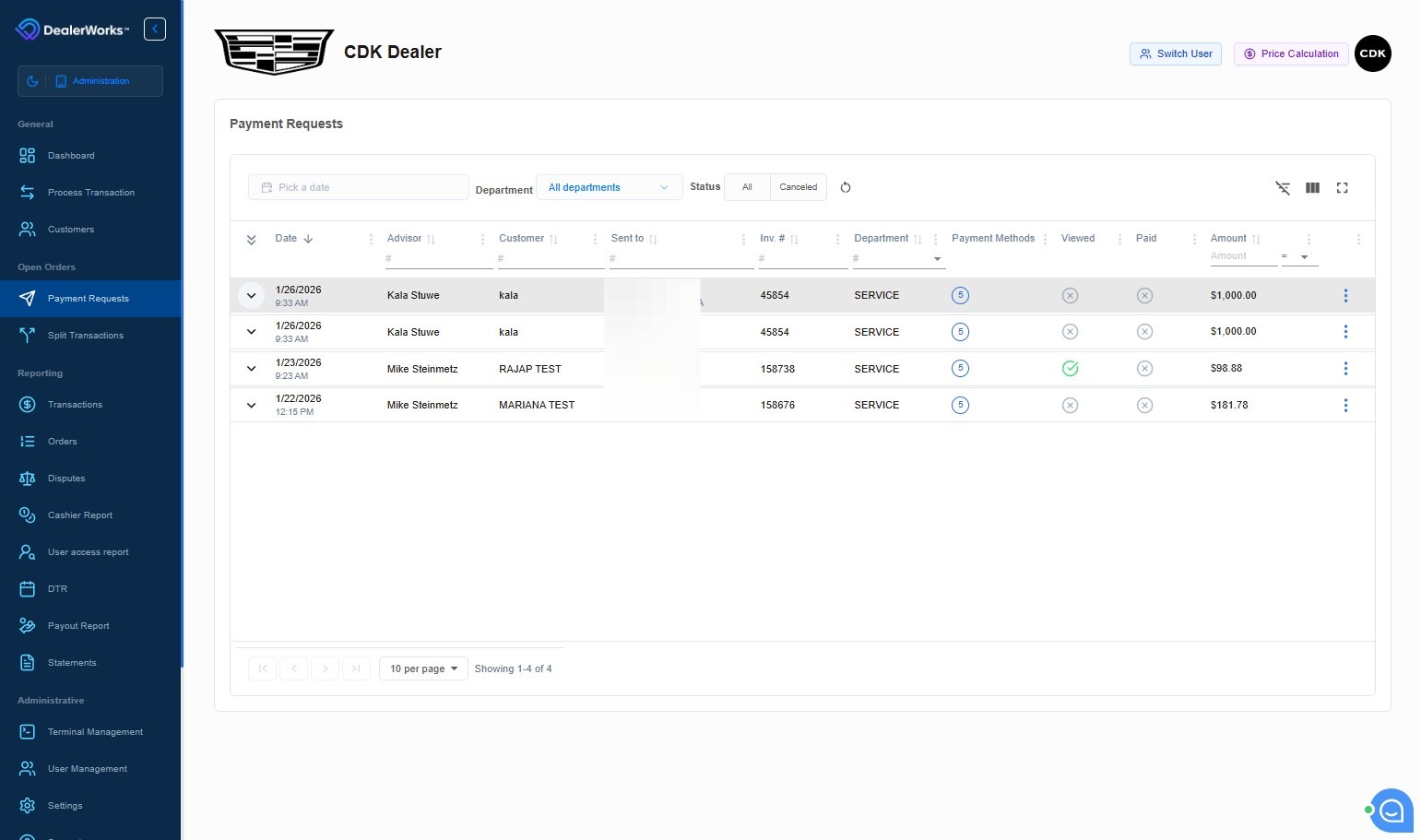
Locate the payment request you want to resend. You can filter by status or search by customer name or invoice number.
- 3
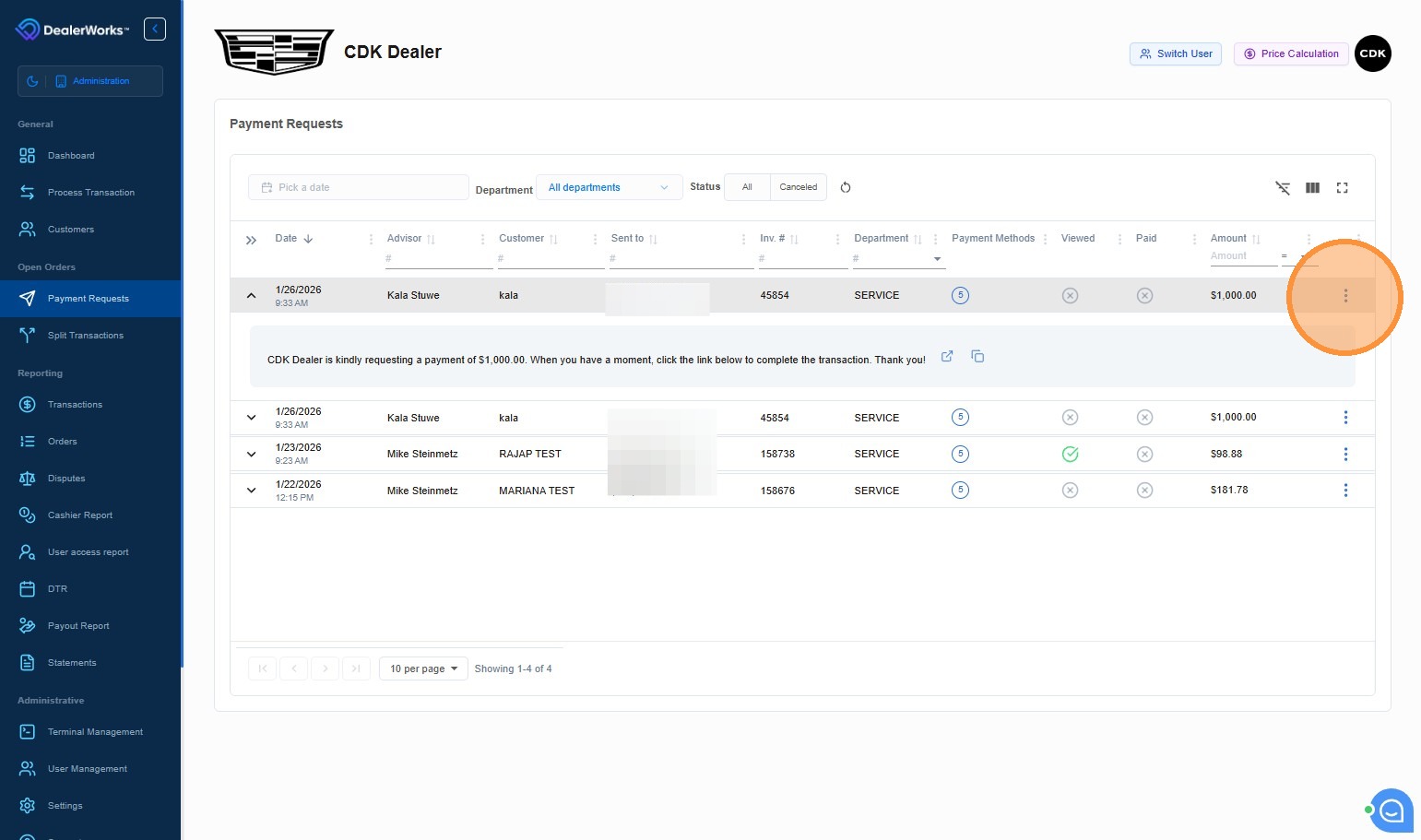
On the payment request row, click the Actions icon (three dots) on the far right.
- 4
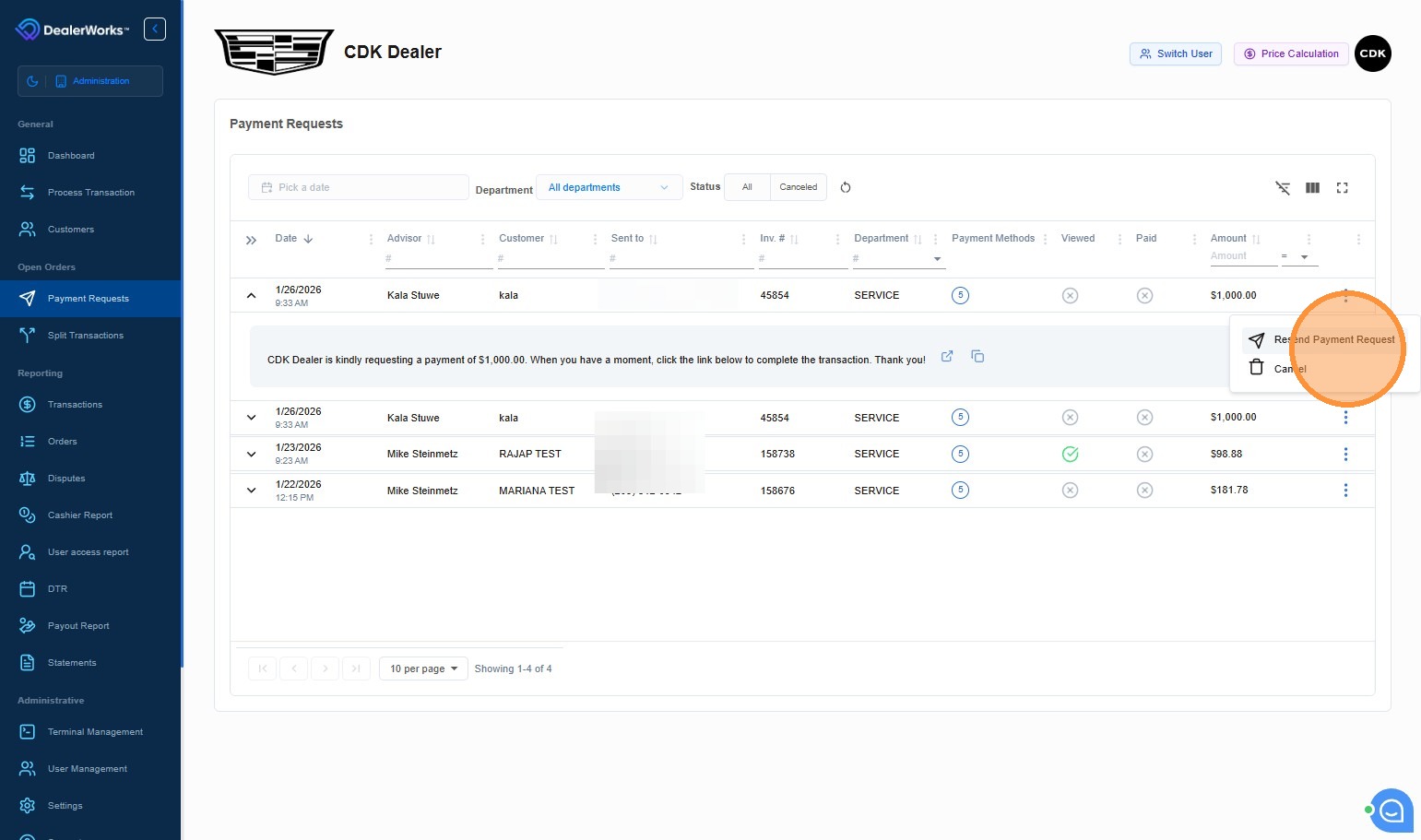
From the dropdown menu, click Resend Payment Request.
- 5
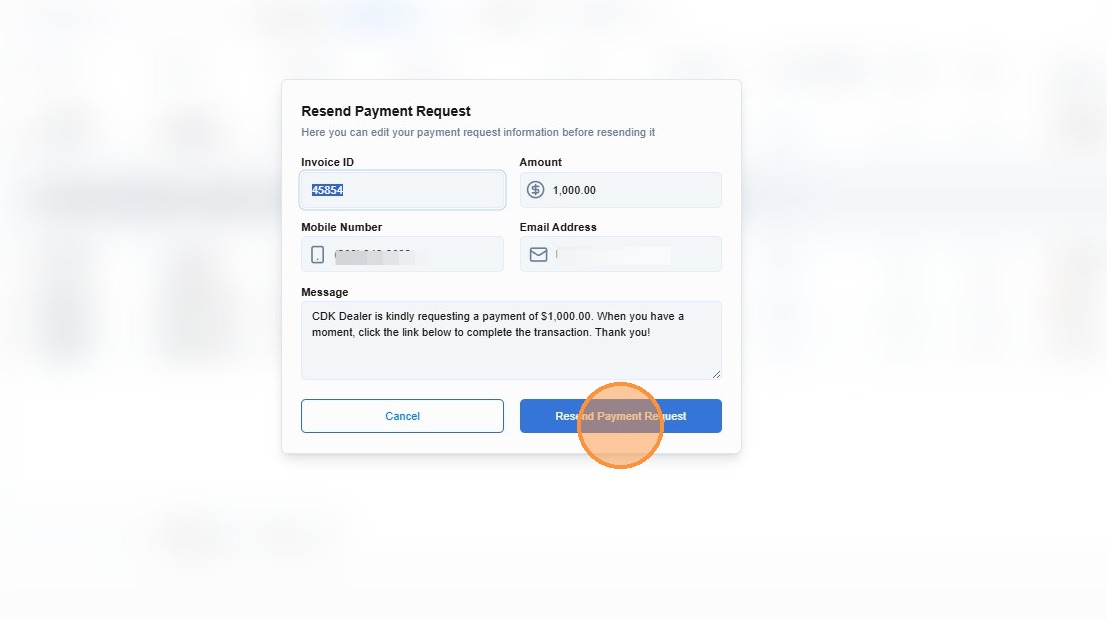
Review the contact details shown, then click Resend Payment Request to confirm.
Tips
- Check the request status before resending. If it already shows Paid, no action is needed.
- If the status shows Expired, the link can no longer be used — create a new payment request from the invoice instead.
- Resending does not create a duplicate charge. The customer will receive the same link for the same amount.
- Ask the customer to also check their spam or junk folder if they still do not see the message after resending.
Need more help?
Contact DealerWorks Support with the invoice number and payment request status if resending does not resolve the issue.
Was this article helpful?
That’s Great!
Thank you for your feedback
Sorry! We couldn't be helpful
Thank you for your feedback
Feedback sent
We appreciate your effort and will try to fix the article