Use this guide to send a secure payment link to a customer by text message or email, allowing them to pay remotely from their own device.
The payment is not posted until the customer completes checkout on their device. Do not mark the invoice as paid until the status updates to Paid.
Steps
- 1
Click Process Transactions from the DealerWorks dashboard.
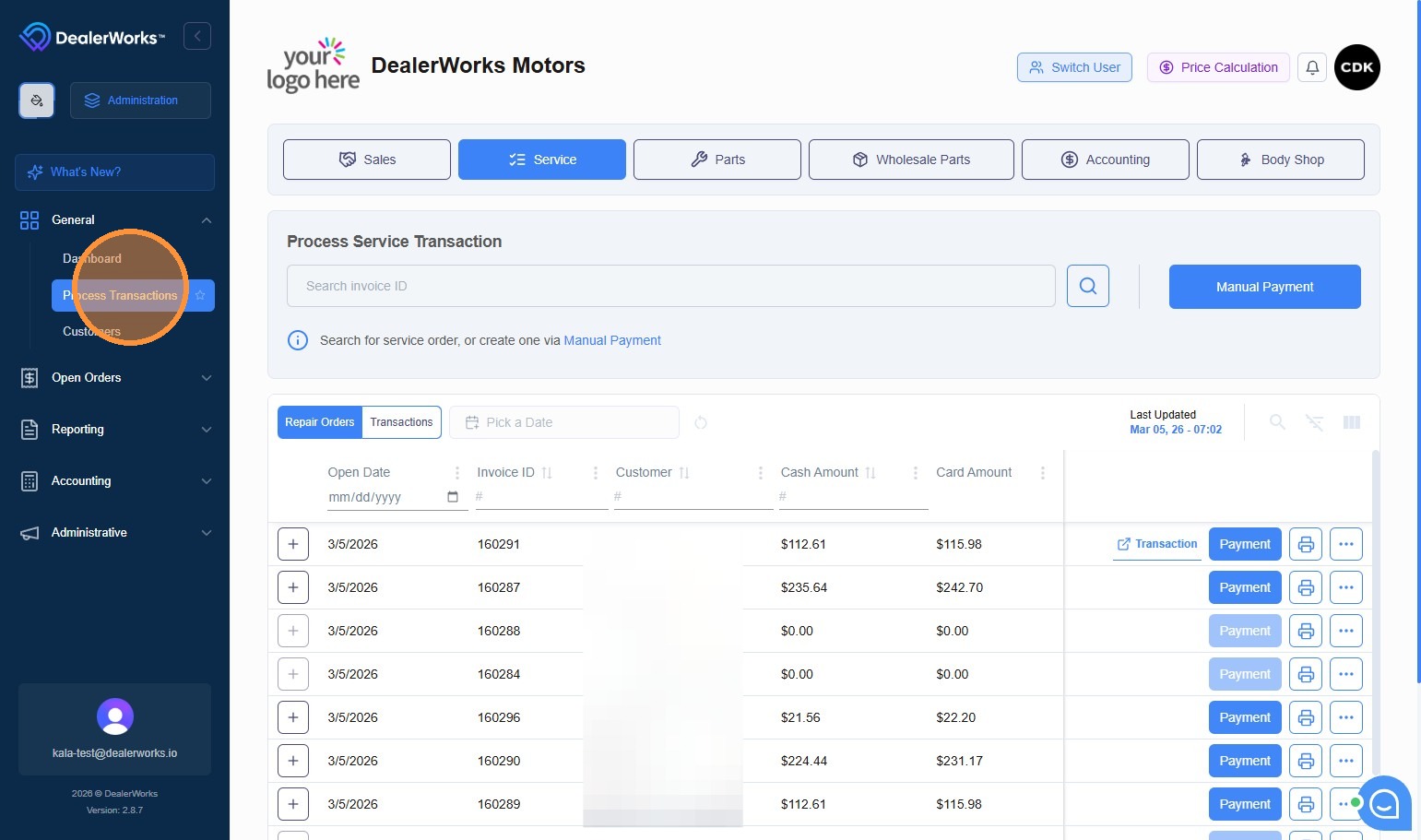
- 2
Select the correct department (for example, Parts).
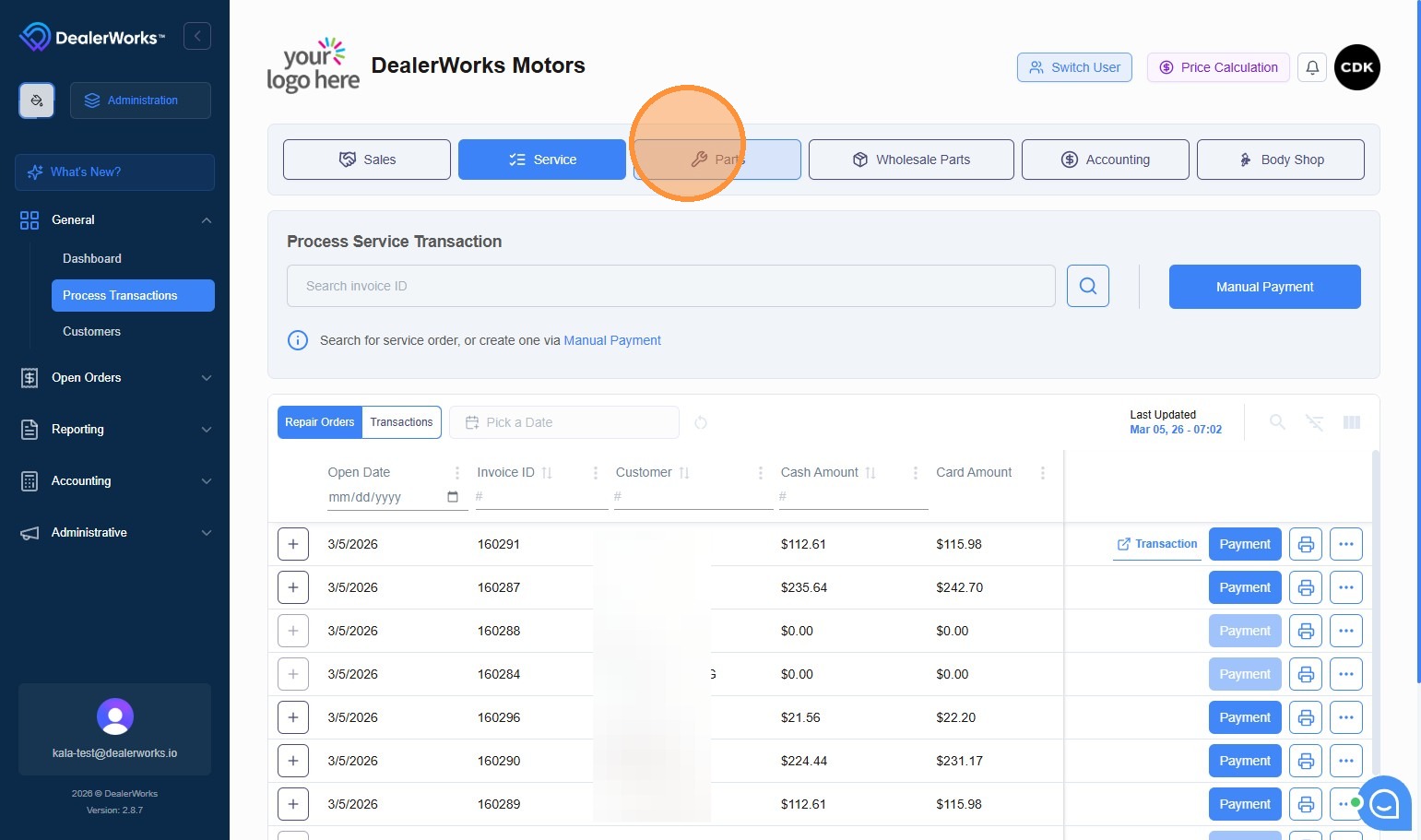
- 3
Locate the repair order in the results, then click Payment.
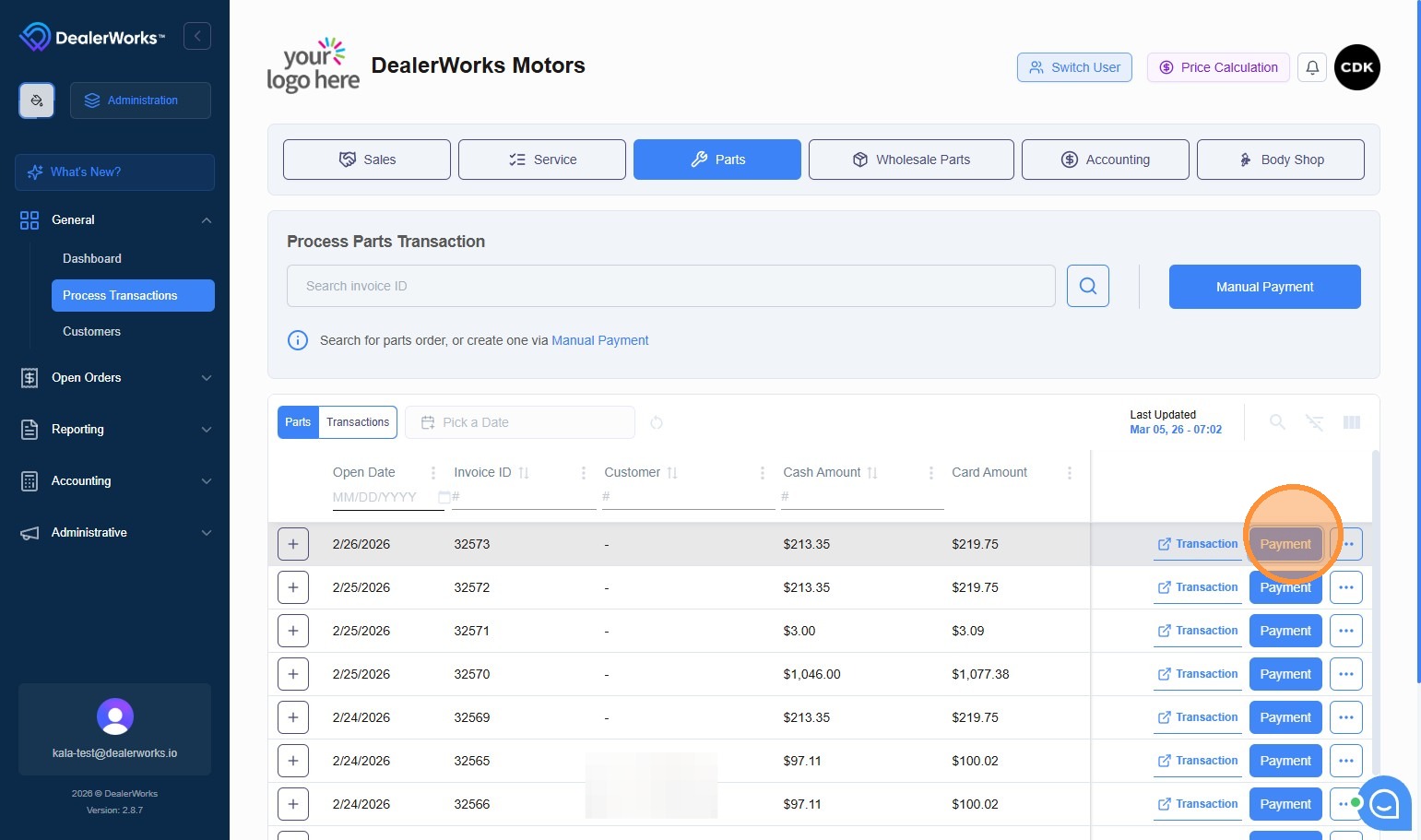
- 4
Click Payment Request from the payment method options.
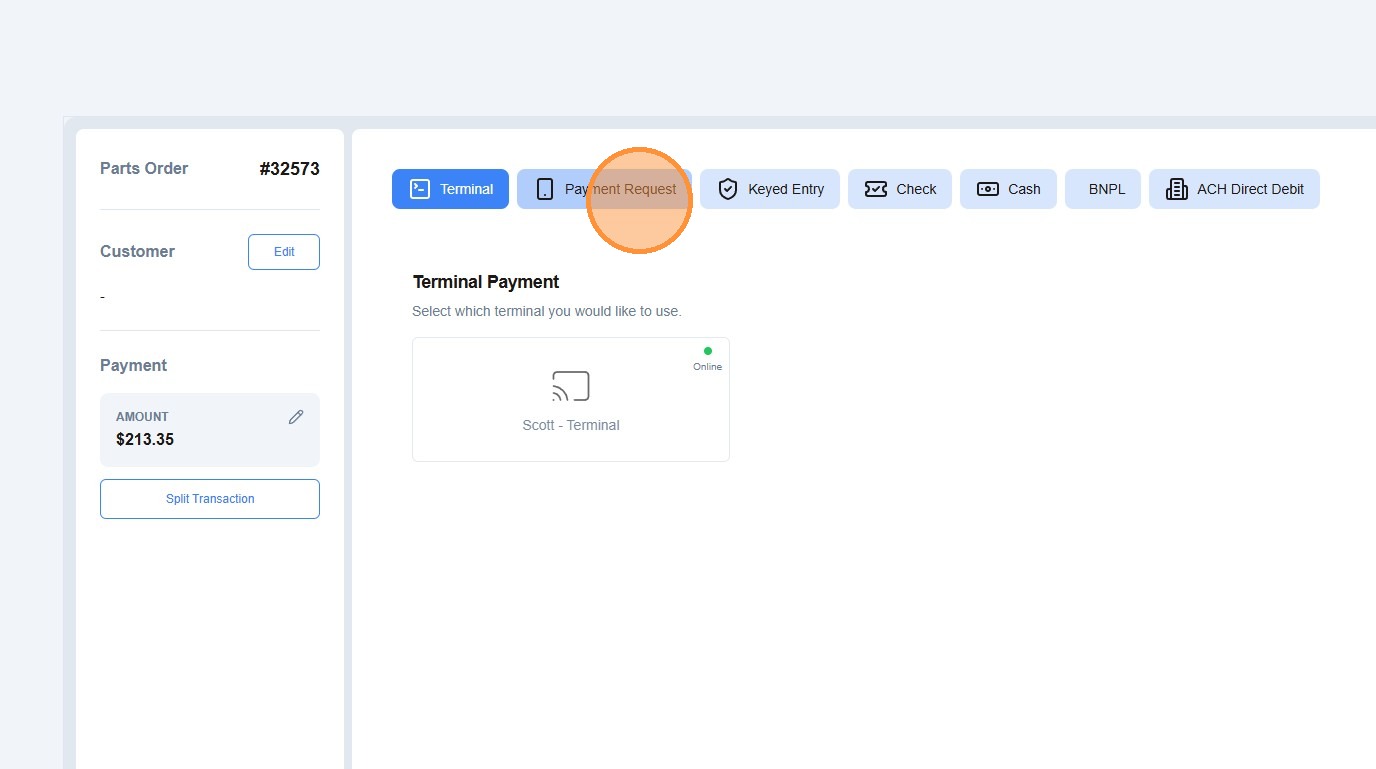
- 5
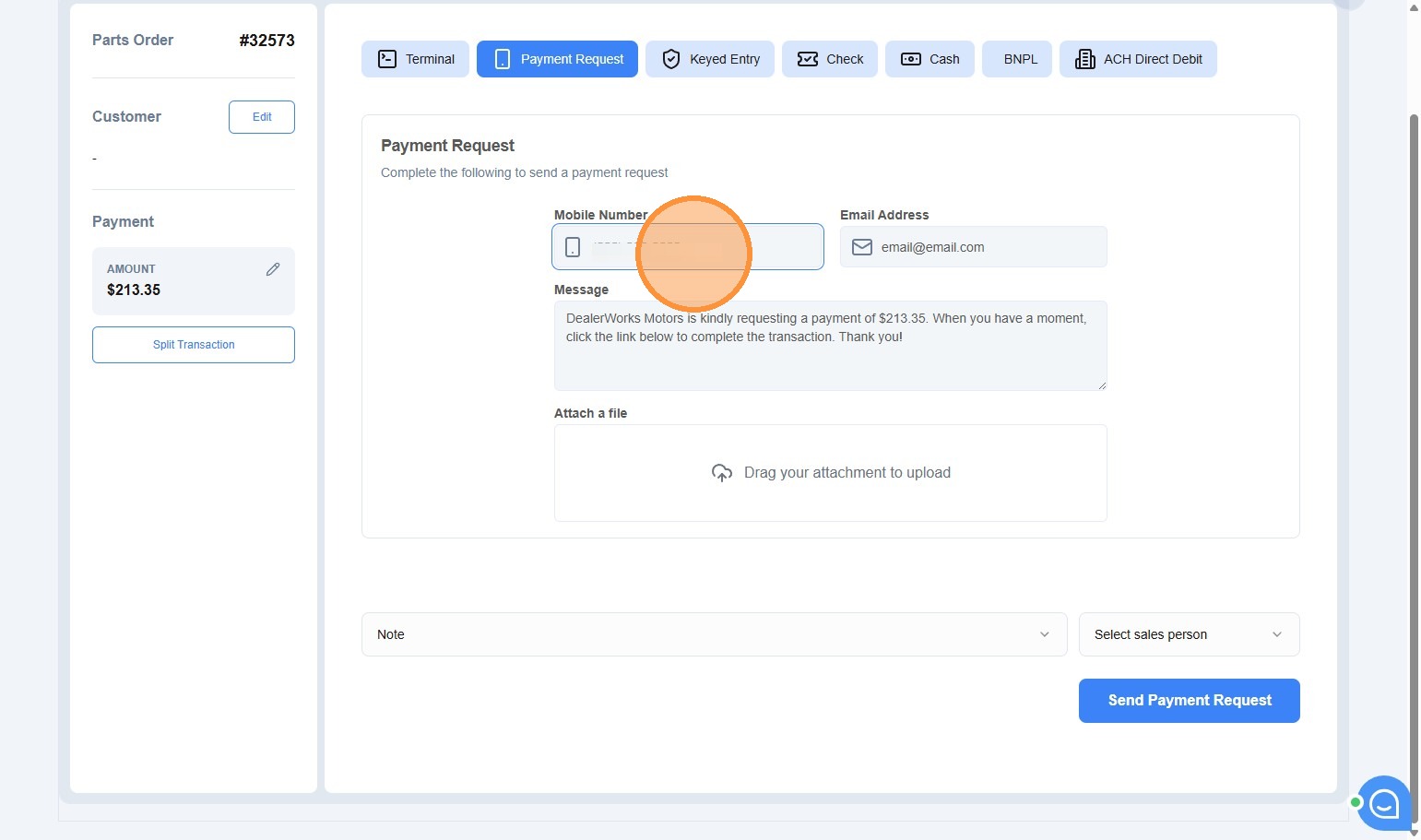
Click the phone number or email field and enter the customer’s contact information.
- 6
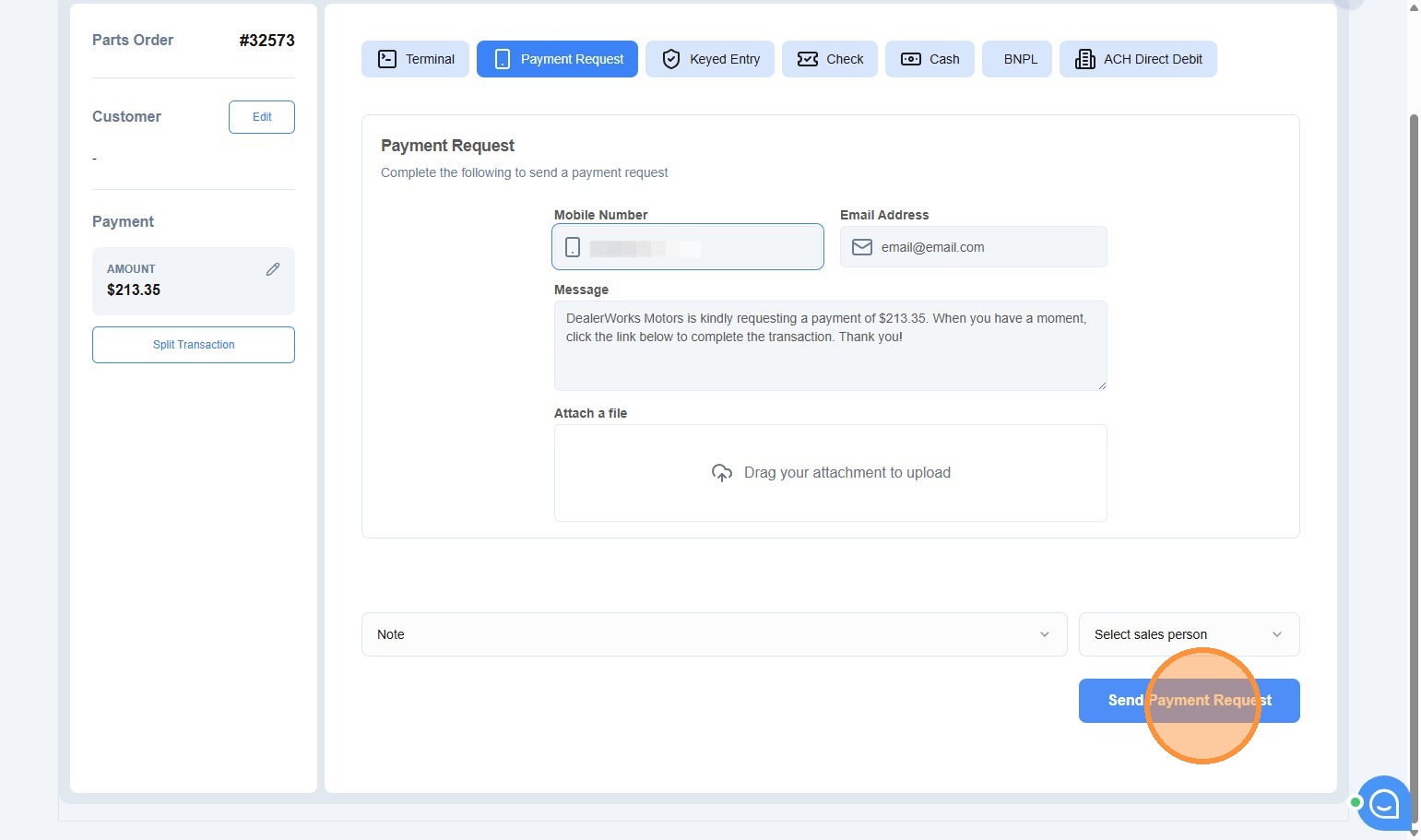
Click Send Payment Request.
- 7
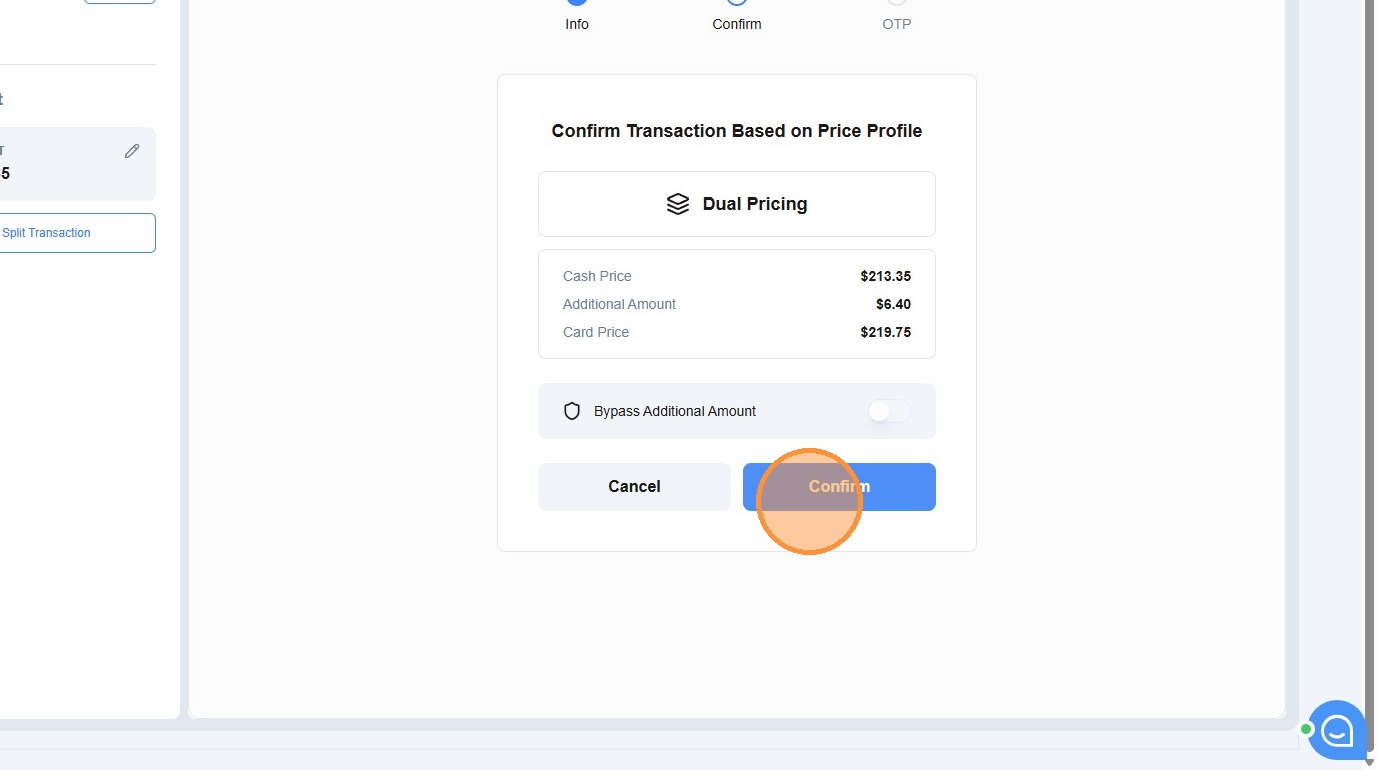
Click Confirm to send the link to the customer.
- 8
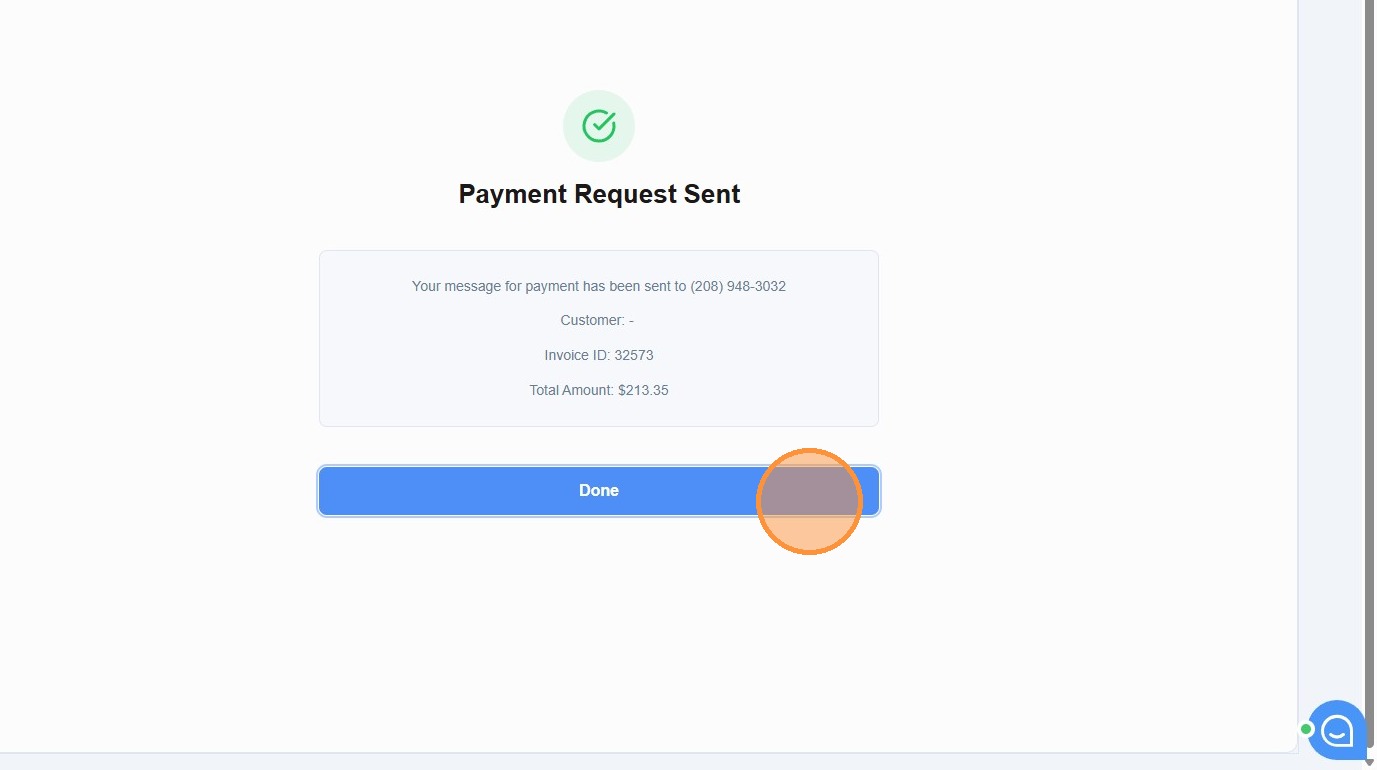
Click Done. The customer will receive a secure payment link by text and/or email.
Tips
- You can monitor the request status (Sent, Delivered, Viewed, Paid) under Payment Requests.
- If the customer does not receive the link, confirm the phone number or email is correct, then use the three-dot menu to Resend.
- If the status shows Challenged (yellow), the customer’s bank requires a 3D Secure verification step. Ask them to complete the prompt without closing their browser.
- Never collect full card numbers or CVV over phone, text, or email. The payment link handles this securely.
Need more help?
Contact DealerWorks Support with the customer name, invoice number, and the current request status. Include the exact error text if the request shows Failed or Declined.
Was this article helpful?
That’s Great!
Thank you for your feedback
Sorry! We couldn't be helpful
Thank you for your feedback
Feedback sent
We appreciate your effort and will try to fix the article