Use this guide to issue a refund on a completed card transaction in DealerWorks using the Reverse Transaction action. Same-day reversals process as voids; reversals on prior-day transactions process as refunds back to the original card.
Important: Reverse Transaction requires a specific permission. If you do not see this option, contact your DealerWorks admin. Always confirm the refund reason with a manager before proceeding.
Steps
- 1
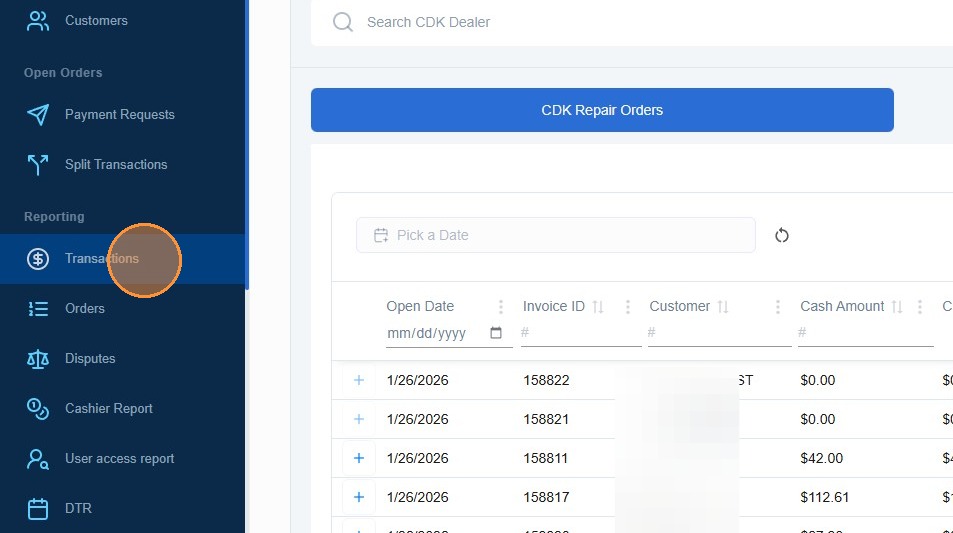
From the left navigation menu, click Reporting and then Transactions.
- 2
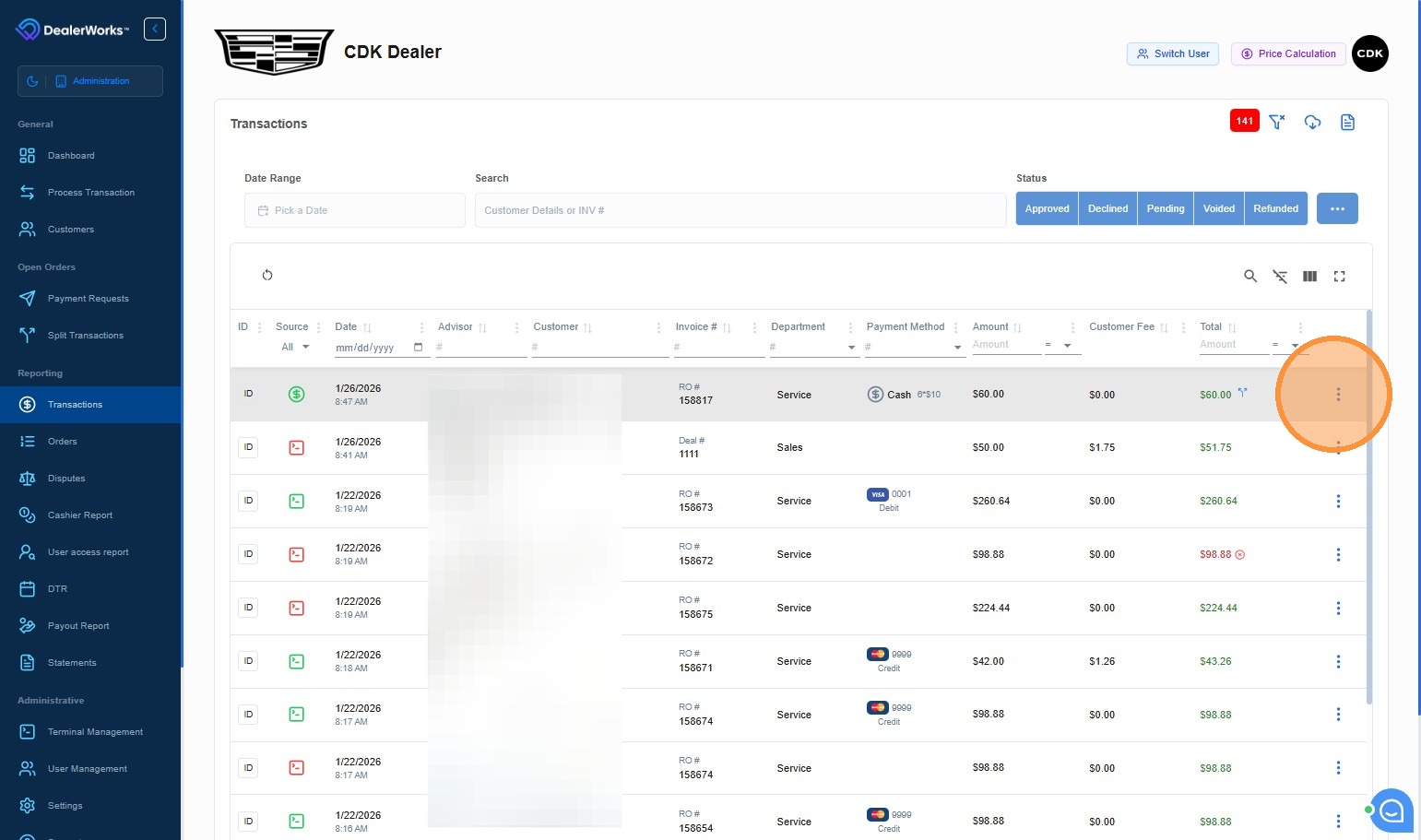
Locate the transaction you need to refund. Click the Actions icon (three dots) on the far right of the transaction row.
- 3
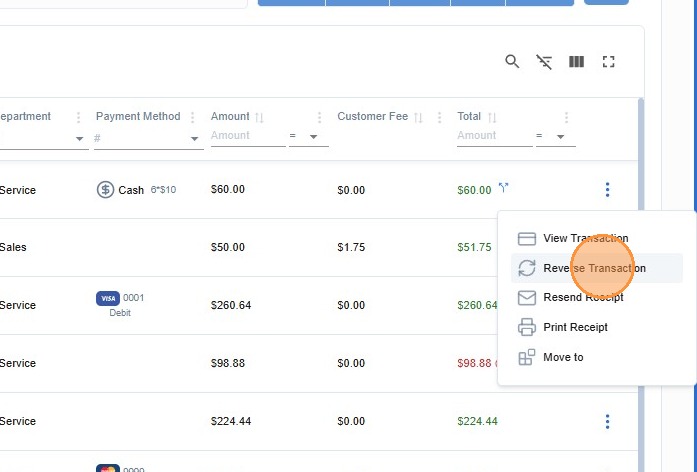
From the dropdown menu, click Reverse Transaction.
- 4
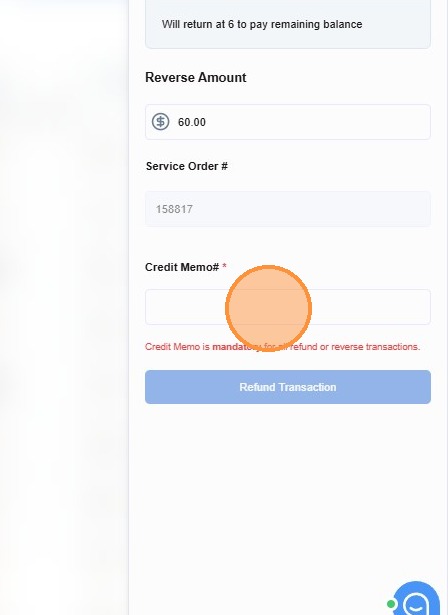
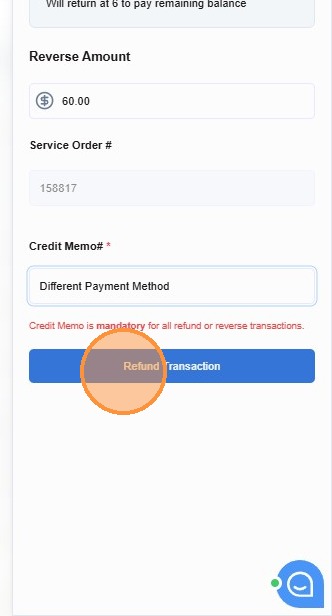
In the Reason (Credit Memo) field, type a brief explanation for the refund. A reason is required before you can continue.
- 5
Review the Reverse Amount shown on the screen. This is the amount that will be returned to the customer.
- 6
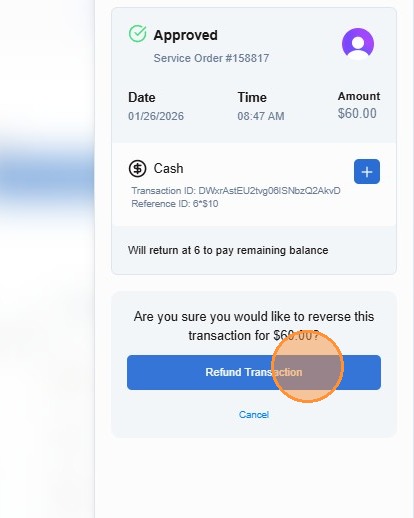
Click Refund Transaction, then click Refund Transaction again in the confirmation prompt to complete the refund.
Tips
- Same-day reversals process as voids and the charge will not appear on the customer’s statement.
- Next-day or later reversals process as refunds and typically appear on the customer’s card within 5-10 business days.
- The Reason field is required and is stored for your records — be descriptive (for example, “Service not completed” or “Customer overpaid”).
Was this article helpful?
That’s Great!
Thank you for your feedback
Sorry! We couldn't be helpful
Thank you for your feedback
Feedback sent
We appreciate your effort and will try to fix the article