Use this guide to generate a Cashier Report in DealerWorks. The Cashier Report shows transaction activity filtered by individual staff member, date, payment method, and department. Use it when you need to review what a specific cashier or advisor processed, reconcile a cash drawer by employee, or investigate a transaction that doesn't match expectations.
This article does not cover the DTR (Daily Transaction Report). The DTR summarizes totals by department and date across all users. For end-of-day reconciliation to the deposit, see How to Generate a DTR (Daily Transaction Report).
Who this is for: Accounting staff and managers who need a per-cashier or per-advisor breakdown of transaction activity.
Steps
- 1
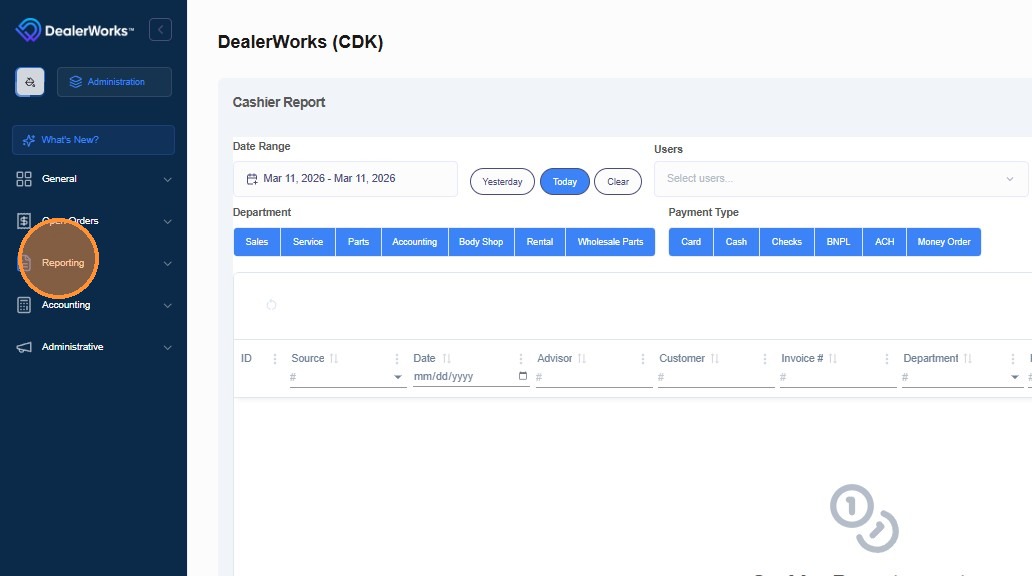
Click Reporting in the main navigation menu.
- 2
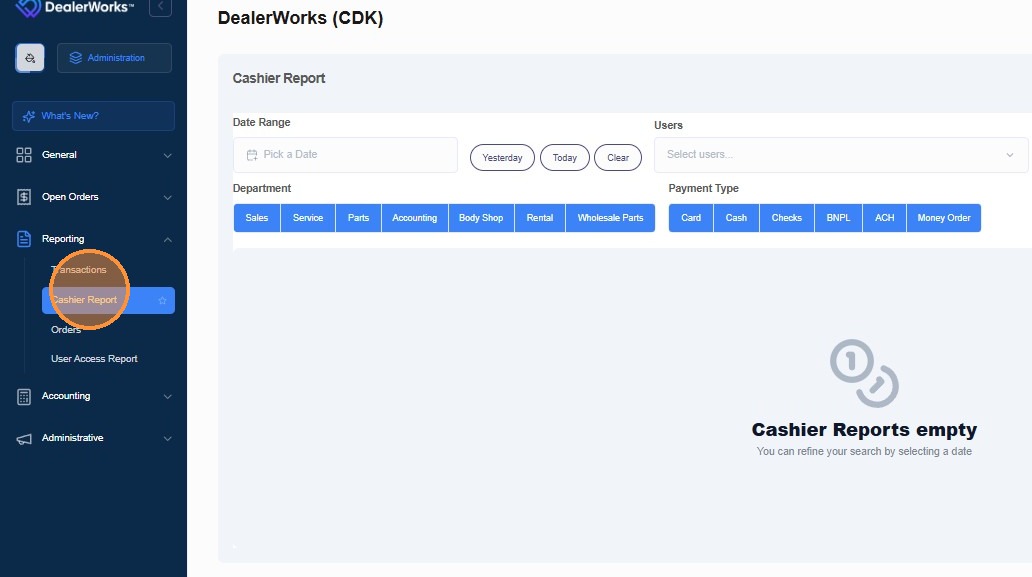
Click Cashier Report.
The Cashier Report opens with filter controls and a results area.
- 3
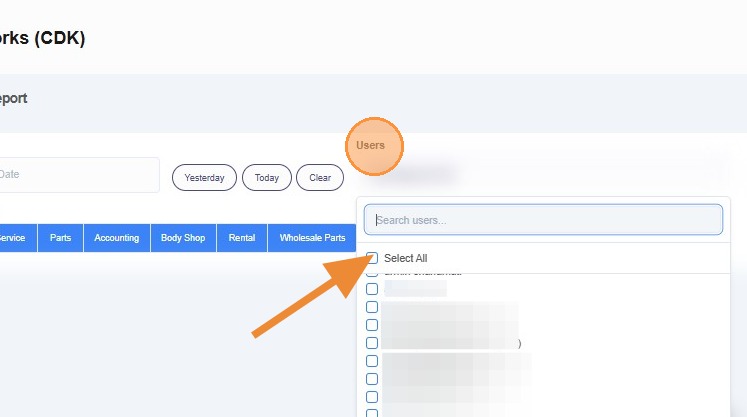
Under Users, select the cashier(s) you want to review. Click Select All for a full store report.
All active DealerWorks accounts are listed. Select one employee to review their activity individually, or select all to see store-wide totals.
- 4
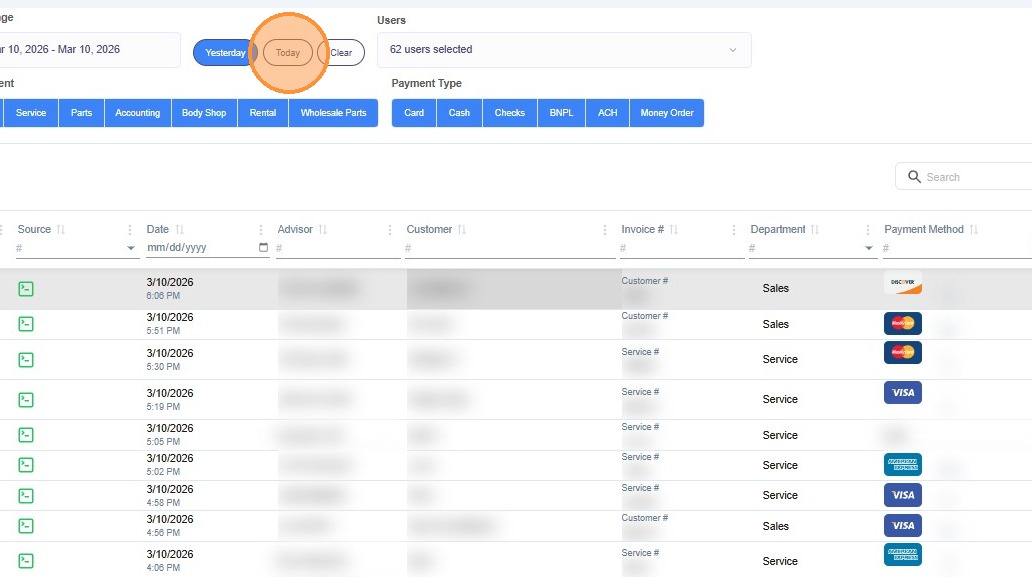
Pick a date using the date selector.
Use Today or Yesterday for quick selections, or set a custom start and end date for a specific range. You can also optionally filter by payment method or department to narrow results further.
- 5
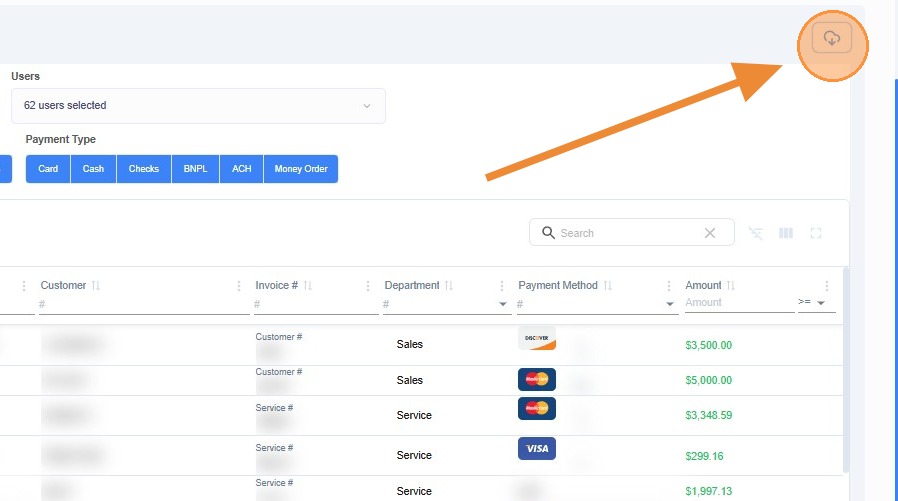
Click the download button to export the report.
The report exports based on the filters currently applied. Results also display on screen for immediate review.
Filter Reference
All four filters can be combined in any combination. The report updates to show only transactions that match every filter applied.
| Filter | Options | When to use it |
|---|---|---|
| User | Any active DealerWorks user. Select one or multiple. | Reviewing a single employee's activity, investigating a specific transaction, or reconciling a cash drawer by cashier. |
| Date | Today, Yesterday, or a custom start and end date. | Same-day reviews, end-of-day close-out, or pulling historical activity for a specific period. |
| Payment Method | ACH, Money Order, BNPL, and others. Select one or multiple. | Isolating cash or check totals, reconciling ACH activity, or reviewing non-card payments separately. |
| Department | Parts, Body Shop, Accounting, and others. Select one or multiple. | Reviewing activity for a single department, or comparing activity across departments for a specific cashier. |
Common Uses
Reconciling a specific cashier's drawer at end of day
Select the cashier's name, set the date to Today, and leave payment method and department unfiltered. The report shows every transaction that cashier posted across all methods.
Investigating a refund that appeared in the DTR
Select all users, set the date to the date the refund appeared, and review the results to identify which cashier processed it and on which transaction.
Reviewing all ACH payments posted in a week
Select all users, set a custom date range for the week, and filter Payment Method to ACH. This is useful when following up on ACH settlement timing or verifying which payments are still pending.
Reviewing one department's activity only
Select all users, set your date range, and filter Department to the department you want. Useful for department managers reviewing their own area without seeing store-wide activity.
Cashier Report vs. DTR — which one to use
| Cashier Report | DTR | |
|---|---|---|
| Best for | Per-employee review, drawer reconciliation, investigating a specific transaction | End-of-day totals, deposit tie-out, department-level summary |
| Filtered by | User, date, payment method, department | Date only |
| Shows | Individual transactions by cashier | Totals and counts by department |
| Access from | Reporting → Cashier Report | Accounting → DTR |
If Something Looks Wrong
No results appear after applying filters
Check that the selected user actually processed transactions during the chosen date range. If you're reviewing today, confirm the date filter is set to Today and not a prior date. Too many filters applied at once can also produce zero results — try removing one filter at a time to identify what's limiting the results.
A cashier's name is not appearing in the user list
The user list shows active DealerWorks accounts only. If a staff member's name is missing, they may not have a DealerWorks account assigned, or their account may be inactive. Contact your DealerWorks admin to confirm.
The Cashier Report total doesn't match the DTR for the same date
This is expected if you're using payment method or department filters in the Cashier Report — those filters narrow the results, so the total will be lower than the full-day DTR. Run the Cashier Report with all users selected and no payment method or department filters to get a comparable full-day total.
A transaction appears in the Cashier Report but not in the DTR
The DTR reports on settled or posted activity. If a transaction is still Pending (for example, an ACH payment that hasn't cleared), it may appear in the Cashier Report before it appears in the DTR. Allow up to two business days for ACH transactions to fully settle.
Was this article helpful?
That’s Great!
Thank you for your feedback
Sorry! We couldn't be helpful
Thank you for your feedback
Feedback sent
We appreciate your effort and will try to fix the article