Manage Multi-Store User Permissions
Use this guide to view and update a user’s access levels across multiple dealership locations. In DealerWorks, permissions are managed on a per-store basis, so each location must be configured individually.
Admin access required. Only users with User Management permissions can update store-level access. Contact your DealerWorks administrator if you do not have access to User Management.
Steps
- 1
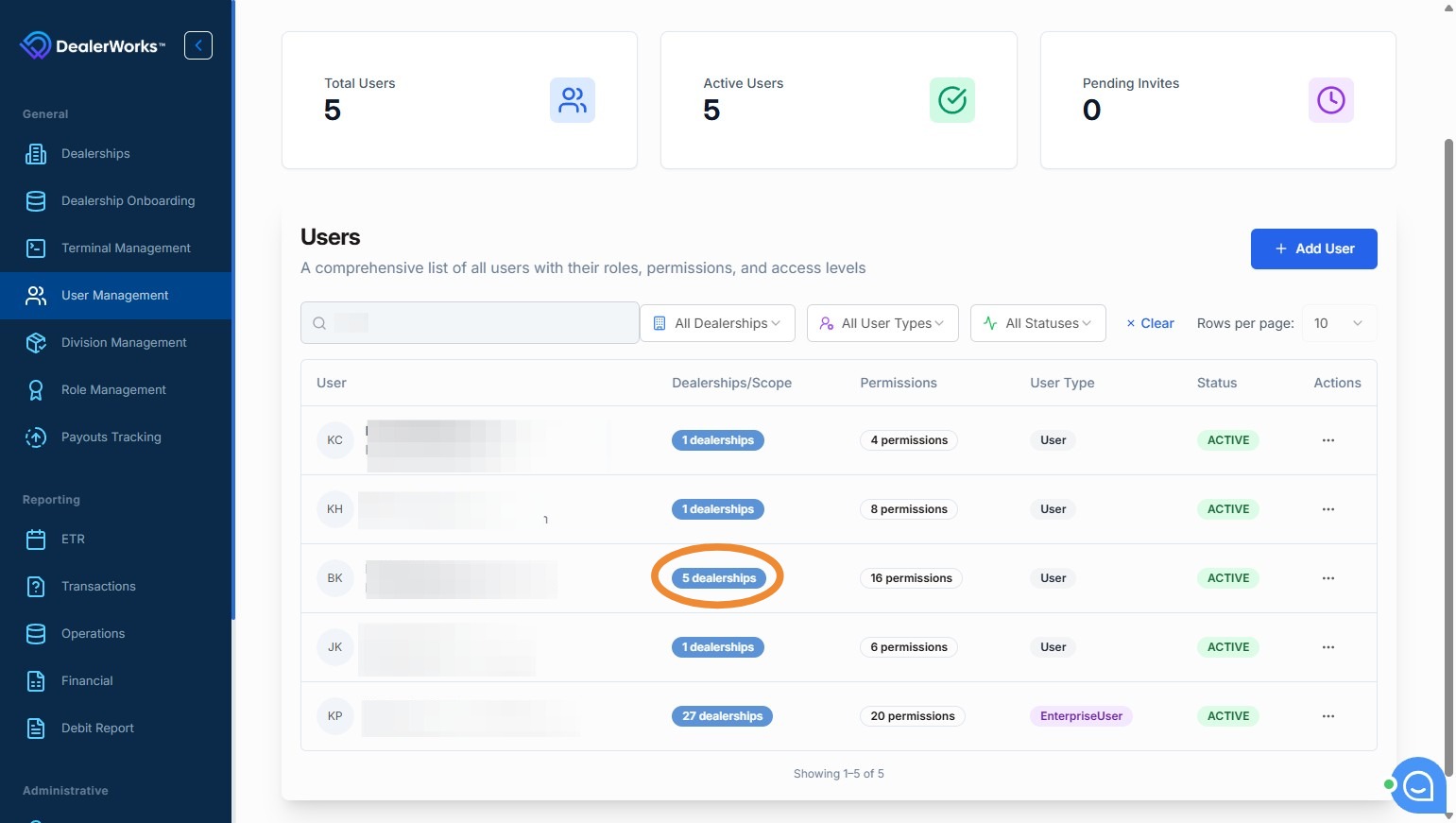
Navigate to User Management in DealerWorks. Use the search bar to find the user you need to update.
- 2
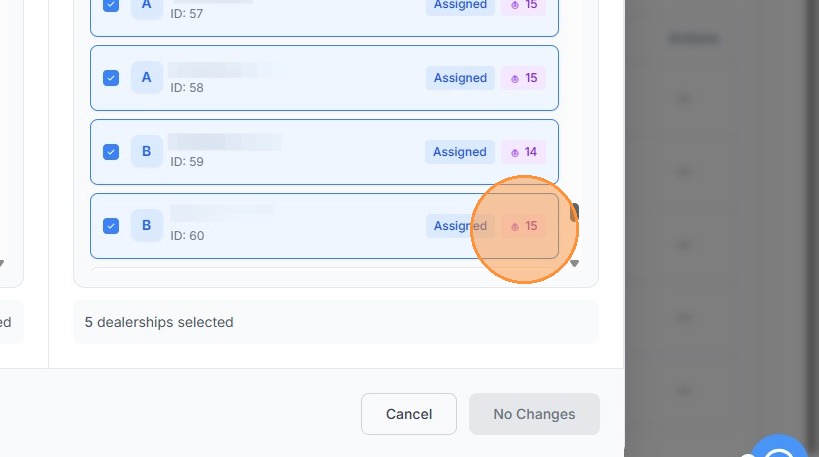
In the user list, locate the Dealerships / Scope column. The number shown indicates how many active permissions the user has at each location. Click the purple store badge next to the dealership you want to configure.
- 3
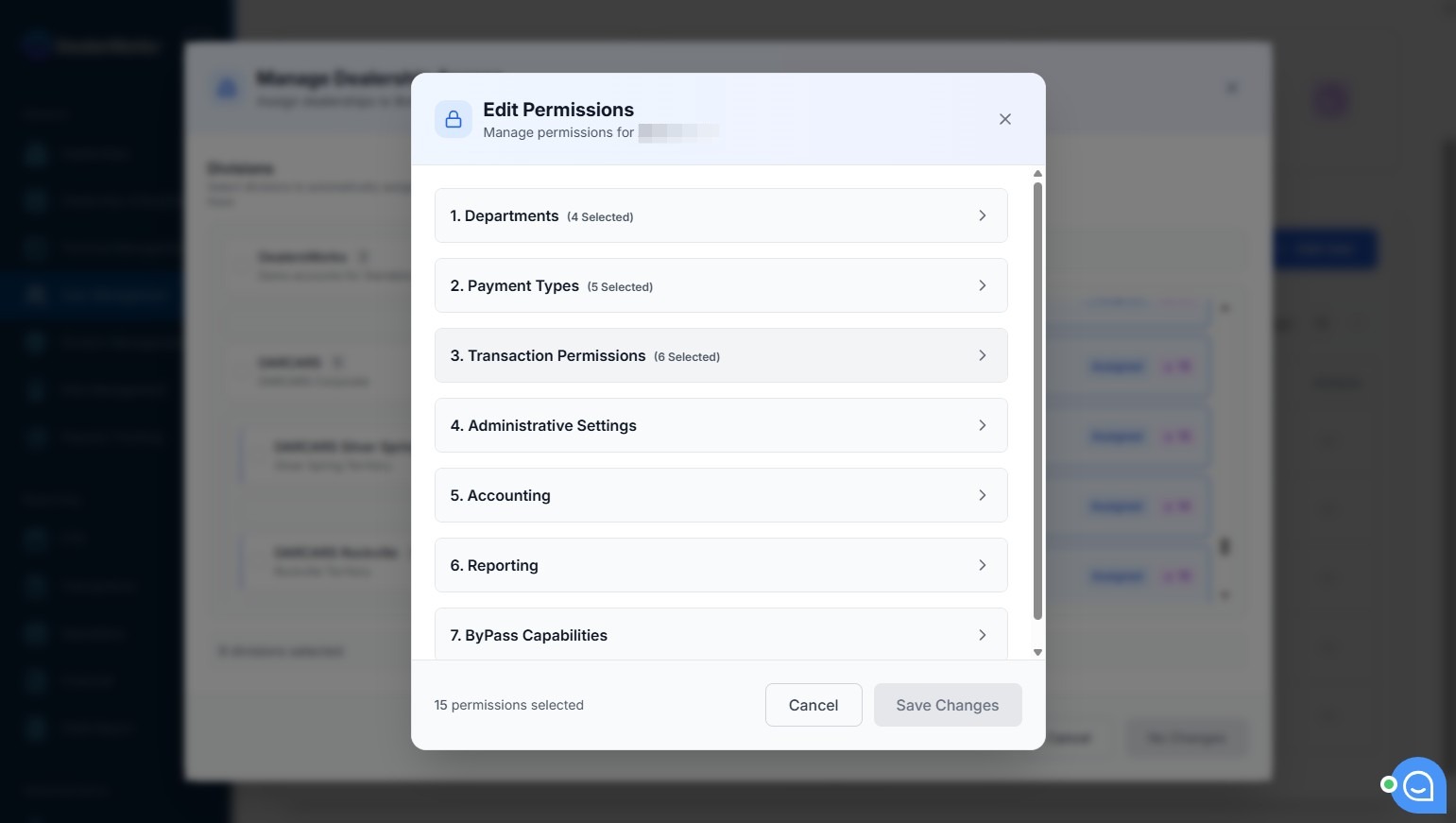
In the permissions overlay, toggle or select the specific access levels required for that store. Changes apply only to the selected dealership.
- 4
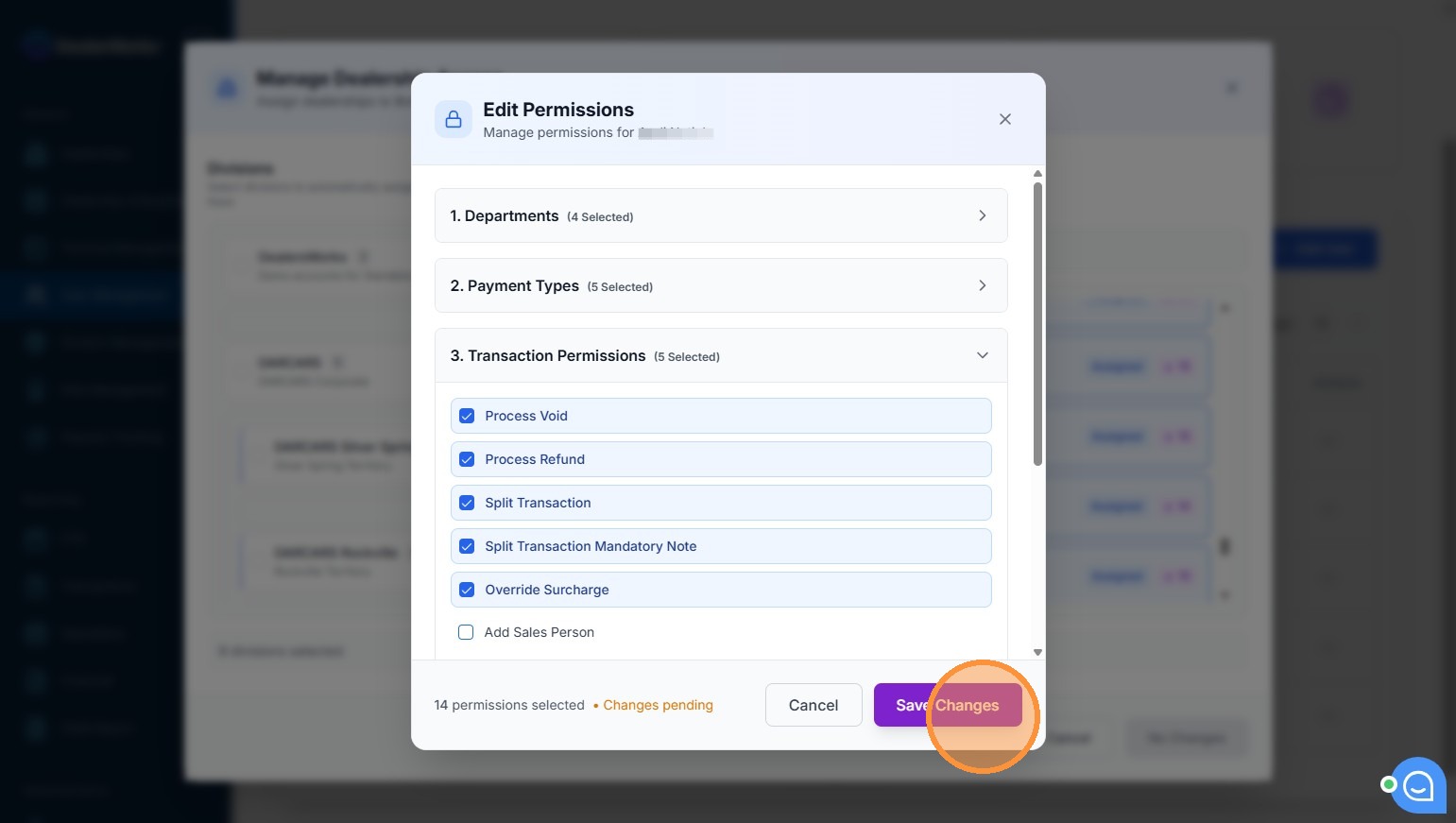
Click Save Changes to apply the updated permissions for that location.
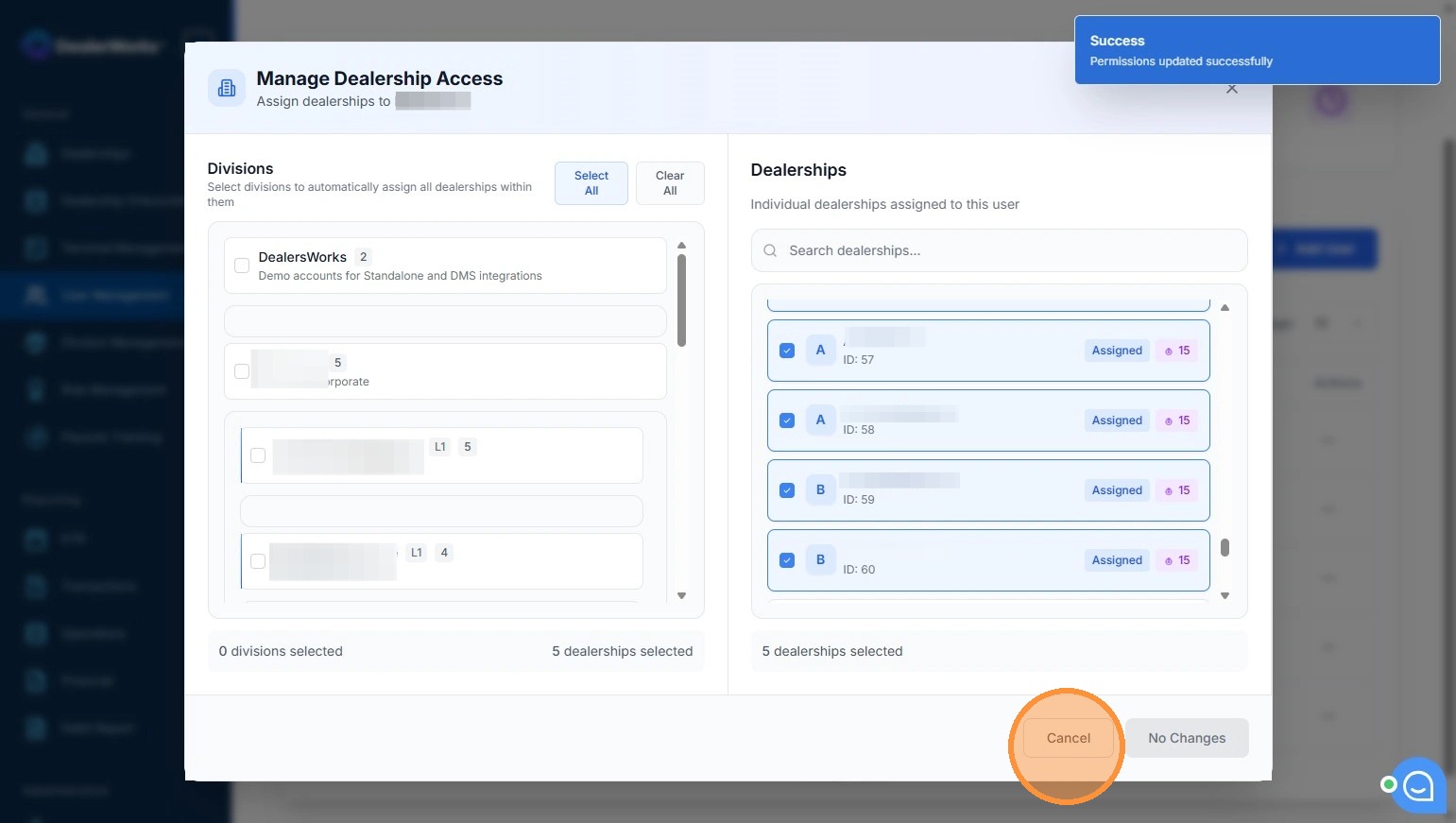
- 5
Click Cancel to close the overlay and return to the user list. To update permissions for another location, repeat steps 2–4 for each additional store.
Tips
- Permissions are store-specific — changes made at one location do not affect the user’s access at other locations.
- The number shown in the Dealerships / Scope column is a quick indicator of how many permissions are active at each store. A low number may indicate limited access.
- Always click Save Changes before closing the overlay. Closing without saving will discard your changes.
- If a user needs the same permissions across several stores, repeat the process for each one individually.
Need more help?
Contact DealerWorks Support if a user’s permissions are not reflecting correctly after saving, or if the User Management section is not accessible from your account.
Was this article helpful?
That’s Great!
Thank you for your feedback
Sorry! We couldn't be helpful
Thank you for your feedback
Feedback sent
We appreciate your effort and will try to fix the article